RESTRICT REMOTE ACCESS TO THE PEOPLE THAT NEED IT
Block unwanted countries and allow access from specific countries. Easily whitelist or block IP addresses from allowed countries.
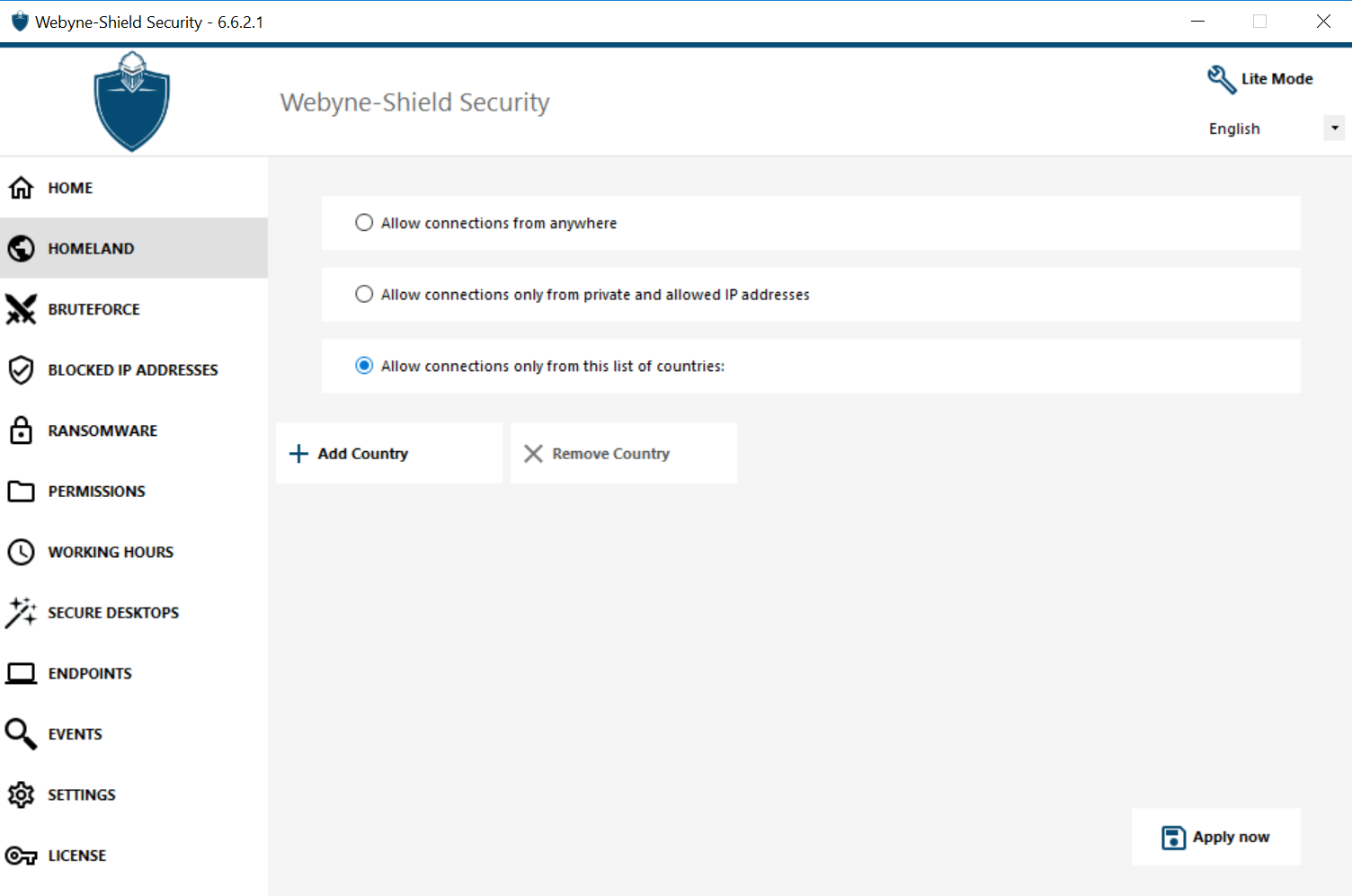
Restrict access from the Internet. If your remote access environment is meant to be private, define your internet access restriction to “only private and whitelisted IP addresses”.

Add or remove processes that are watched by the Homeland Protection feature. Easily add ports to the Homeland Protection Feature watch list.

Brute Force Defender enables you to protect your public server from hackers, network scanners and brute-force robots that try to guess your Administrator login and password. Monitor Windows failed login attempts and automatically block the offending IP addresses after a pre-determined number of failures.
EASILY MANAGE IP ADDRESSES FROM A UNIFIED ALLOW/BLOCK LIST
Manage both blocked and whitelisted IP addresses with a single list.
Conveniently search the unified IP address list to find and easily manage your access list. For example, if we searched for blocked addresses, by entering the word “blocked” on the search bar, all the blocked IPs will be displayed.
Provide meaningful descriptions to any IP addresses to quickly identify them in the future.
Add multiple blocked IP addresses to your whitelist in a single action
LIMIT REMOTE ACCESS TO BUSINESS HOURS
Only authorize users or groups to connect during certain days and timeslots. It is possible to select a specific time zone depending on your user’s office location.
Manage timeslot permissions for specific users or groups. If a user belongs to several groups, the most permissive permissions apply.
User sessions can be automatically disconnected at the end of the permitted timeslot.
Schedule a warning message to notify the user before they are automatically logged off.
EFFICIENTLY DETECT, BLOCK AND PREVENT RANSOMWARE ATTACKS
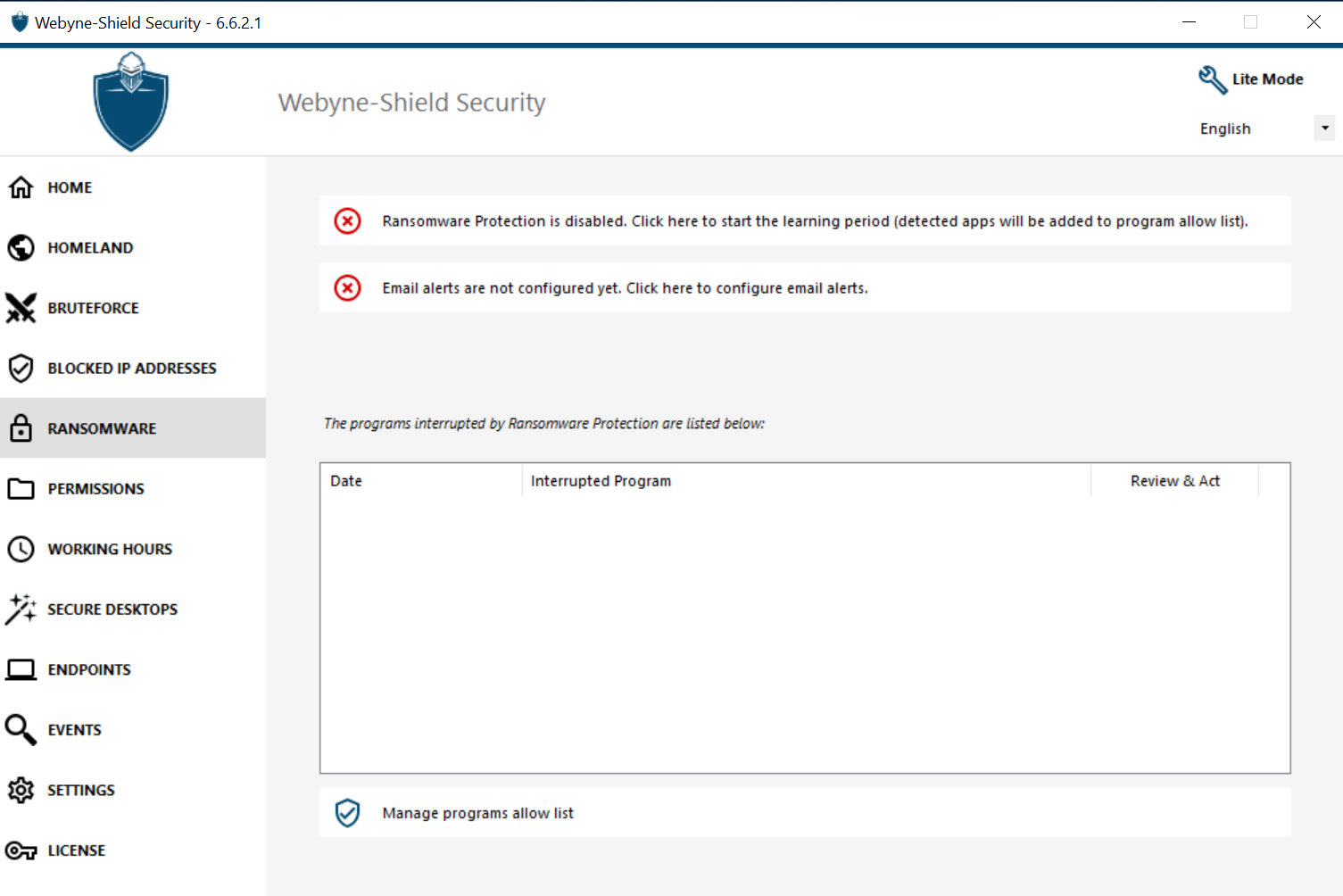
Web Advance Security reacts as soon as it detects ransomware on your server. It possesses both static and behavioral analysis: The static analysis enables the software to react immediately when an extension name changes. The behavioral analysis looks at how a program will interact with files and detect new strains of ransomware.
Ransomware Protection uses pure behavioral detection techniques and does not rely on malware signatures, enabling it to catch ransomware unknown to antivirus and antimalware software. To ensure a greater level of protection, Ransomware Protection also creates bait files in key folders where ransomware attacks often originate.
Without disrupting server activity, the learning period enables Web Advance Security to learn standard behaviors of users and applications to identify all legitimate business applications.
Web Advance Security automatically stops the attack and quarantines the affected programs and files. Administrators can review the list of quarantined items and decide to whitelist specific entries.
Administrators learn to anticipate threats by identifying the source of attacks and analyzing running processes listed in reports.
Be alerted in real-time. Configure your SMTP settings for Web Advanced Security to send you email alerts to highlight important security events.
Lorem ipsum dolor sit amet, consectetur adipiscing elit. Ut elit tellus, luctus nec ullamcorper mattis, pulvinar dapibus leo.
Easily define the file extensions that need to be excluded from the Ransomware Protection analyses.
MANAGE REMOTE ACCESS PERMISSION FOR USERS, GROUPS AND FILES
Easily inspect permissions applied to each folder, subfolder or file by simply clicking on them in a tree view. Quickly assess what permissions are assigned to which user or groups. Audit specific files to monitor permissions in the event viewer.
You can configure the security level for each user or group by selecting one of three standardized security levels crafted to the IT industry’s best practices standards:
Administrators can easily customize the security level of each of the three standard modes to their own needs. Simply select or unselect folders, disks and applications.
Administrators can decide whether a user can connect from any device or only specific device names. Web Advance Security automatically creates a list of devices that attempt to connect, facilitating the administrator’s task of accepting or denying access from specific devices.
By pairing devices to user accounts, Endpoint Protection prevents compromised credentials from being used to access your network, because the attacker would need an authorized device to connect.
Keep your machine protected against known online attacks, on-line service abuse, malware, botnets and other cybercrime activities. Hacker IP Protection leverages the information provided by the community of Advanced Security users to automatically blacklist more than 368 million identified threats daily
Quickly access the settings of all available security measures, view the latest security events, easily access the event logs and assess the status of your system from your Advanced Security dashboard.

Easily monitor, navigate, search and interact with your security events. The events are logged and refreshed every few seconds. Monitor the stataus of each Web Advance Security feature individually at the top of the Security Event Log tab.

Quickly identify issues using the System Audit feature available on the home tab. Monitor Advanced Security's connection and operation status. View the status of your server's firewall (Windows or TSplus Firewalls supported). Ensure that all passwords respect the minimum length.

The Advanced Security dashboard is available in two modes: Lite and Expert. Use the Lite Mode for an easy-to-read overview of the main events, features and settings.

Use the search bar to quickly find priority events. Simply right click on each event to interact with it.